Verifying Content
Who's this page for?
Everyone who edits entries or assets. You need the "Verify entries" (or "Verify assets") permission to edit the verification fields.
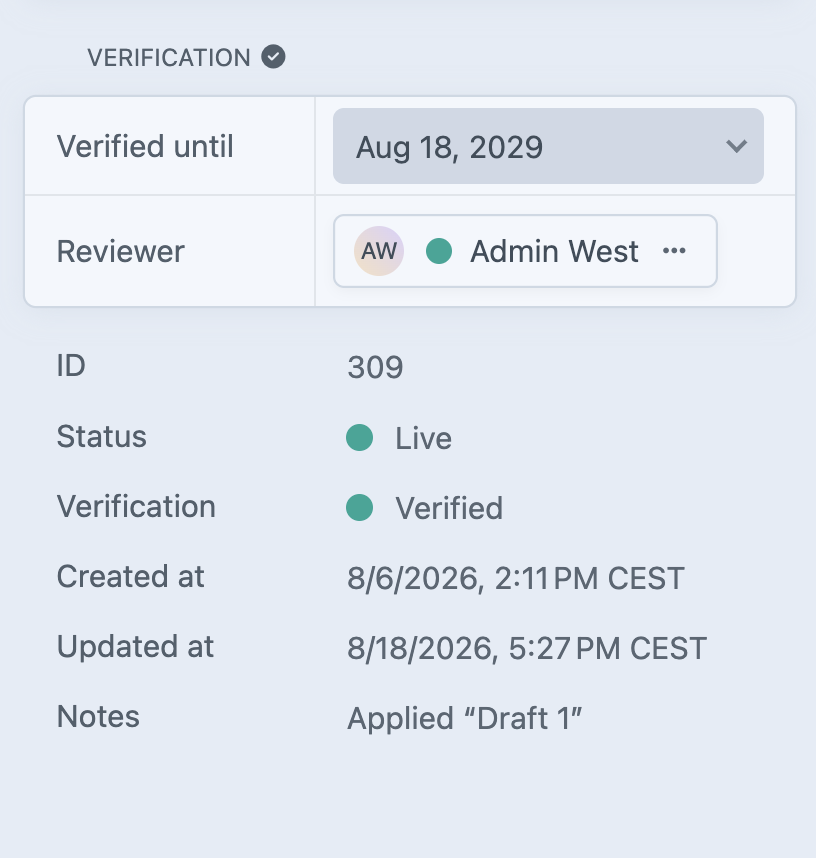
The Verification panel on the edit page
When you edit an entry in an enabled section (or an asset in an enabled volume), a Verification panel appears in the right-hand sidebar. It contains two fields:
"Verified until" date
A dropdown with the following choices:
- 7 days, 30 days, 90 days, 1 year. Sets the expiry date that far from today.
- Specific Date. Opens a date picker so you can choose an exact day.
- Indefinitely. No expiry. The element stays Verified until someone decides otherwise.
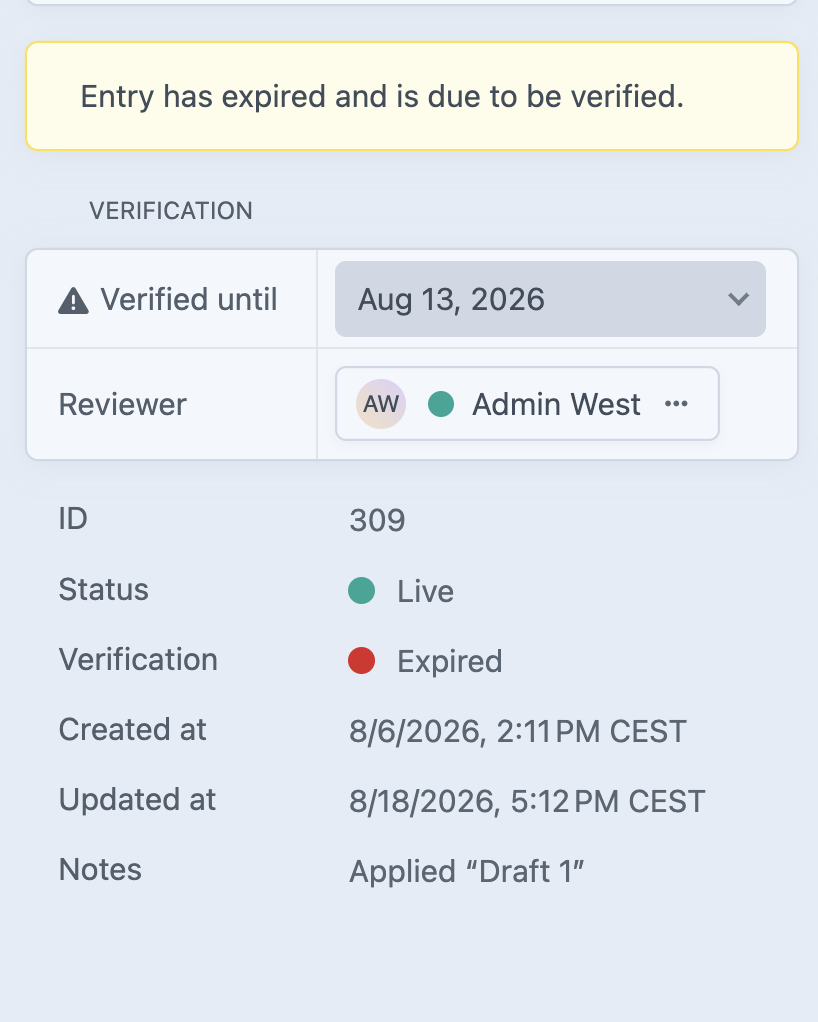
When the element is currently expired, the field is marked with a warning icon. When it's verified, the panel header shows a check icon.
Reviewer
Select the Craft user who is responsible for reviewing this element when it expires. Only active users who are allowed to verify this element type can be selected.
TIP
Control who's allowed to review content or edit an entry/asset's verification fields in Craft's user permissions.
The status display
Next to the fields, the edit page's metadata area (under "Status") shows the current verification state, Verified or Expired, with a colored indicator.
What happens when you save
- Saving the element stores its verification date and Reviewer for the site you are editing. On multi-site installations, other sites keep their own verification state.
- If the element is new and you didn't set a date yourself, the section's or volume's default period is applied automatically. A default Reviewer is applied too, if the section's settings has one.
- If a Reviewer is assigned and the element is currently verified, saving a change to it sends the Reviewer a short "content has been updated" email so they can re-check it. See Email Notifications.
Verifying directly from a list of entries/assets
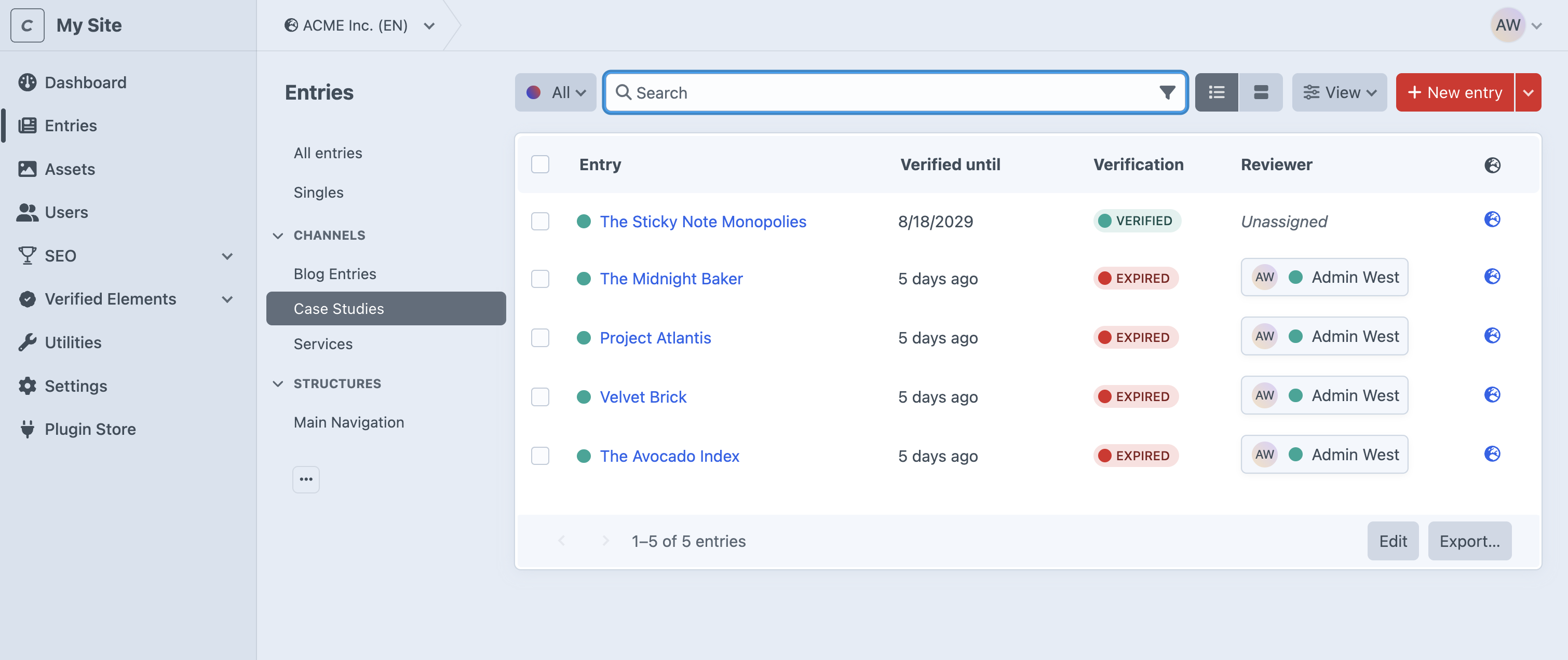
You don't have to open every element. In any entry or asset list you can:
- Show the plugin's columns (Verification, Verified until, Reviewer) via the list's column settings.
- Sort by "Verified until".
- Edit the "Verified until" date and Reviewer inline, right in the table (with inline editing enabled).
- Select several elements and use the Verify or Assign Reviewer bulk actions. See Bulk Actions.
Filtering lists by verification state
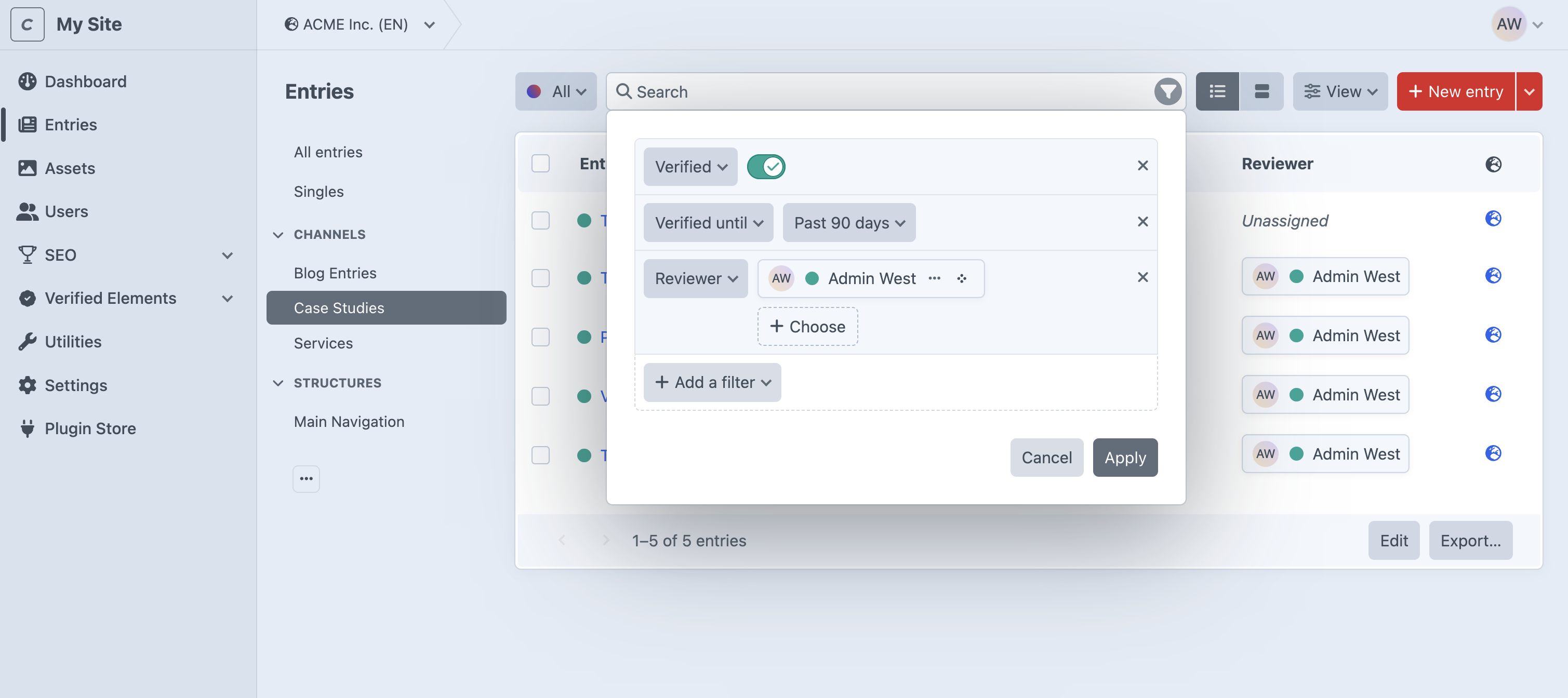
The plugin adds three rules to Craft's element filters, so you can build your own filtered views on any entry or asset list:
- Verified (yes or no)
- Verified Until Date (date comparison)
- Reviewer (specific user)